Create and Update Items
Build clean item records manually or from a food-product catalog.
Choose the right starting point
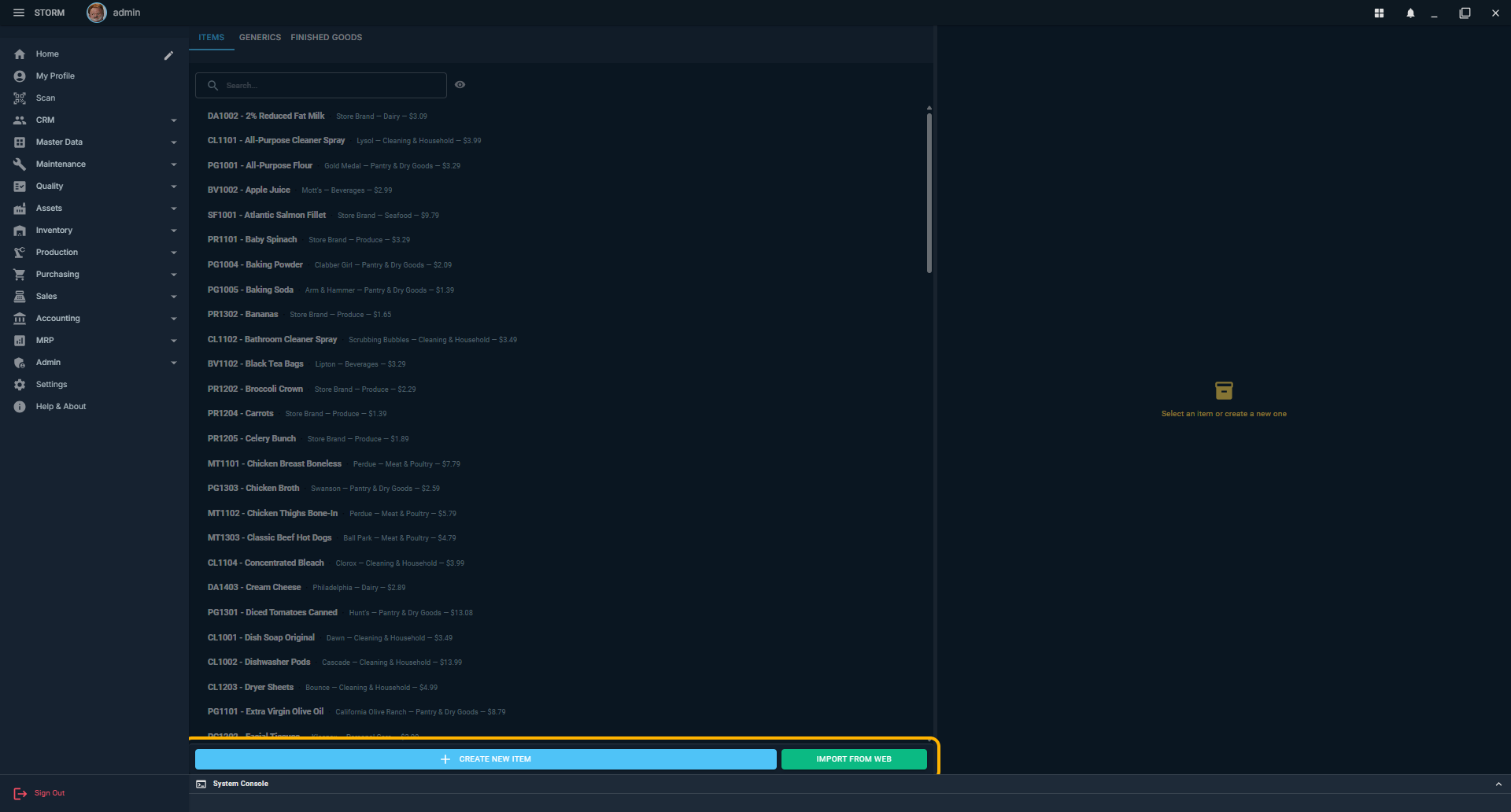
Before You Begin
Item code
Use a stable internal SKU, such as WD9000. Product catalogs can suggest facts, but they do not own your app item code.
Base UoM
Choose the unit in which inventory is counted and costed. Package details can describe how a purchased container converts to that unit.
Item type
Use Items for physical materials, Finished Goods for products you make, and Generics for reusable family rules.
1. Create a New Item from Scratch
Use this path when the material is not in a public catalog, when you already know the correct setup, or when you want full control over the record.
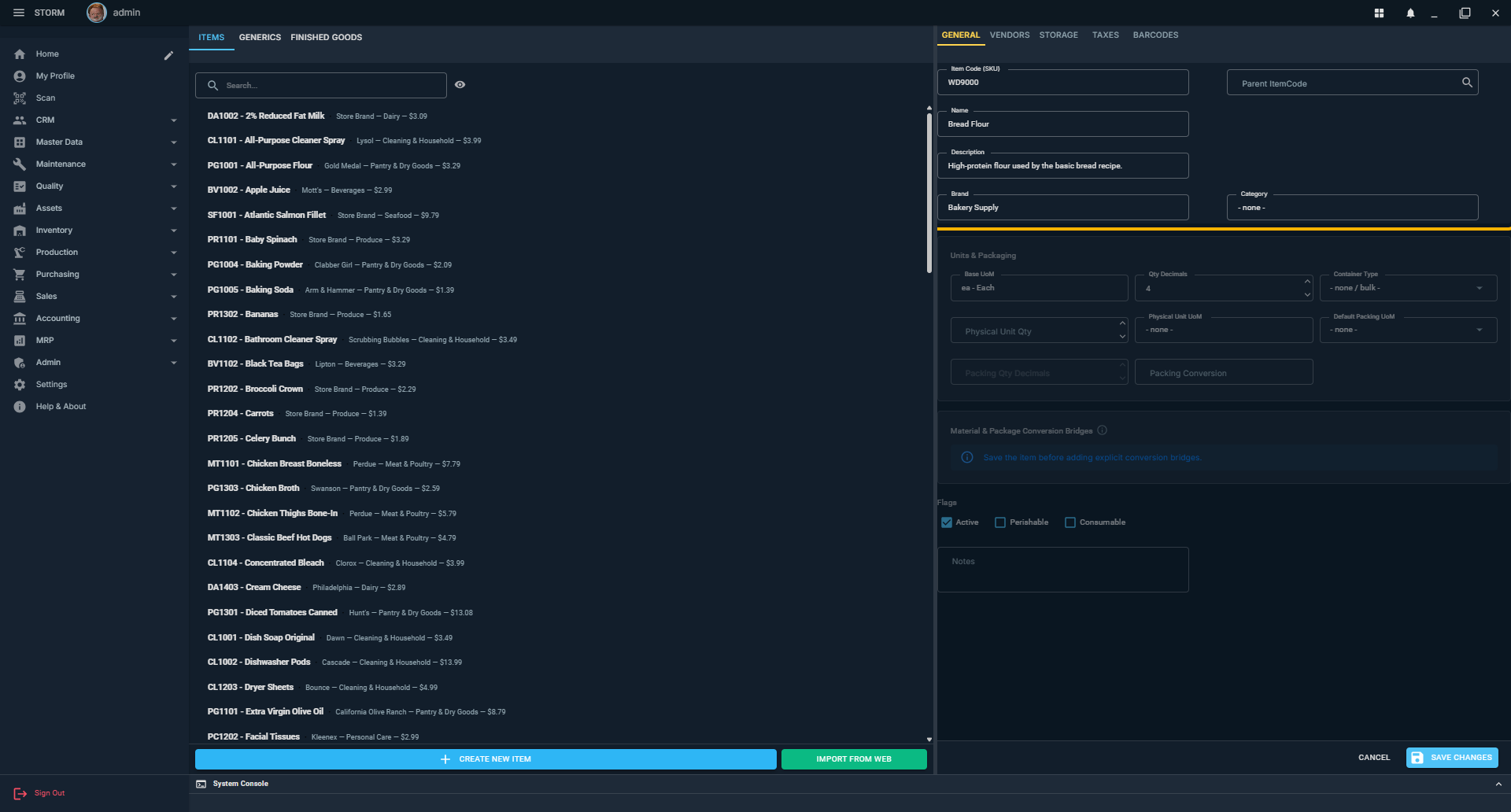
- Open Items. In the left panel, select the Items tab. Use Finished Goods instead when this is a product your operation makes.
- Start the draft. Click Create New Item.
- Enter identity. On General, enter a unique Item Code (SKU) and a clear Name. Add description, brand, and category when useful.
- Choose inheritance when appropriate. If this physical item belongs to a generic family, select its Parent ItemCode. Inherited fields show the family defaults; unlock only the values this item must override.
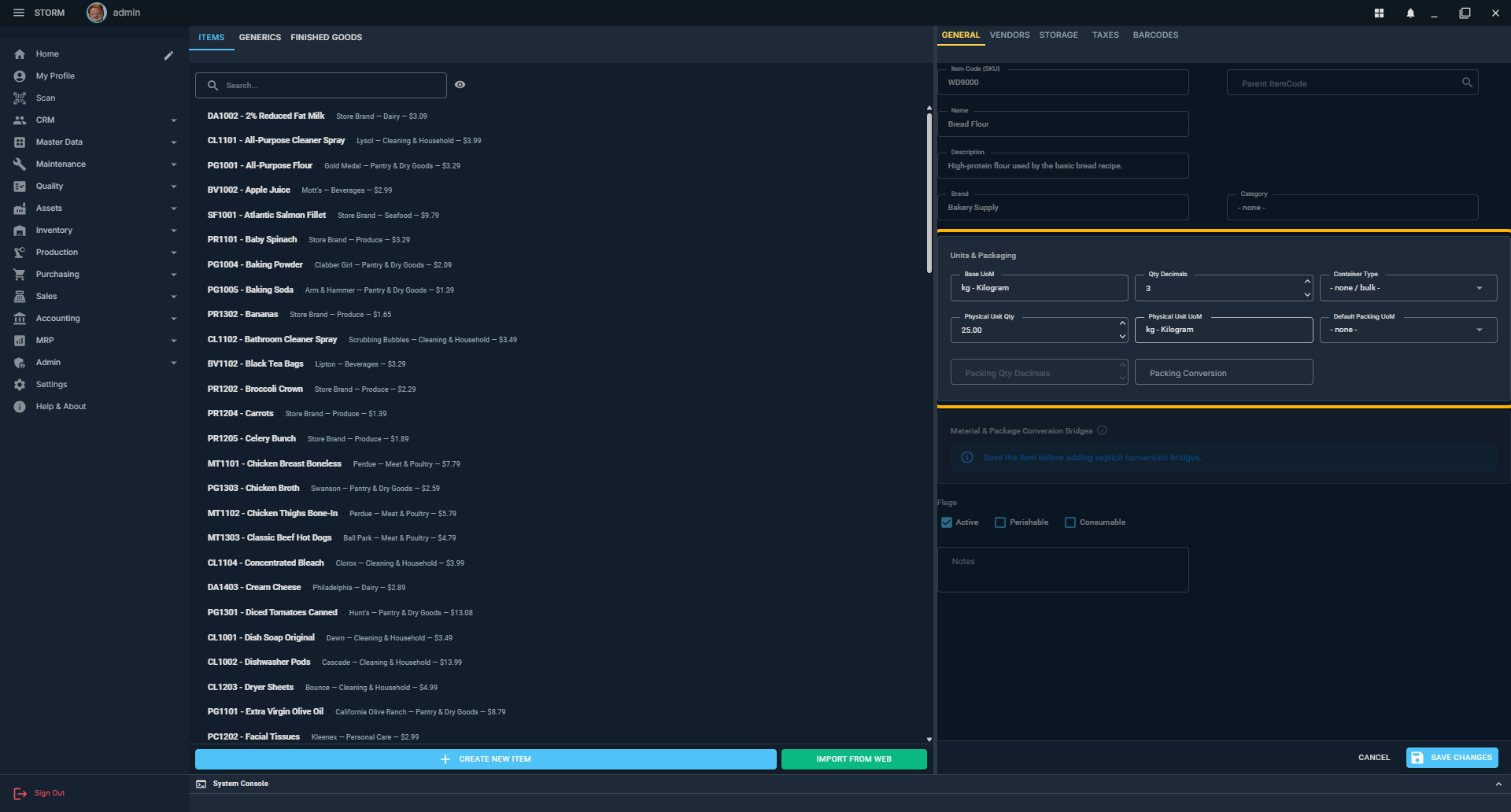
- Define units and packaging. Set the Base UoM, quantity precision, physical unit size, and package conversion. Confirm that the displayed conversion describes the package correctly.
- Set operational rules. Review Active, Perishable, and Consumable. On Storage, check the default location, receiving quality status, consumption method, and any cold-chain restrictions.
- Add business details. Use the Suppliers, Nutrition, Taxes, and Barcodes tabs as needed. Vendor offers belong to physical items, not generic templates.
- Save. Click Save Changes. The item becomes available to inventory, purchasing, recipes, production, and planning according to its type and permissions.
1b. Create a Food Item with Import from Web
The food importer can load product identity, packaging, barcodes, ingredients, and nutrition facts into a new unsaved draft. It speeds up data entry; it does not replace operator review.
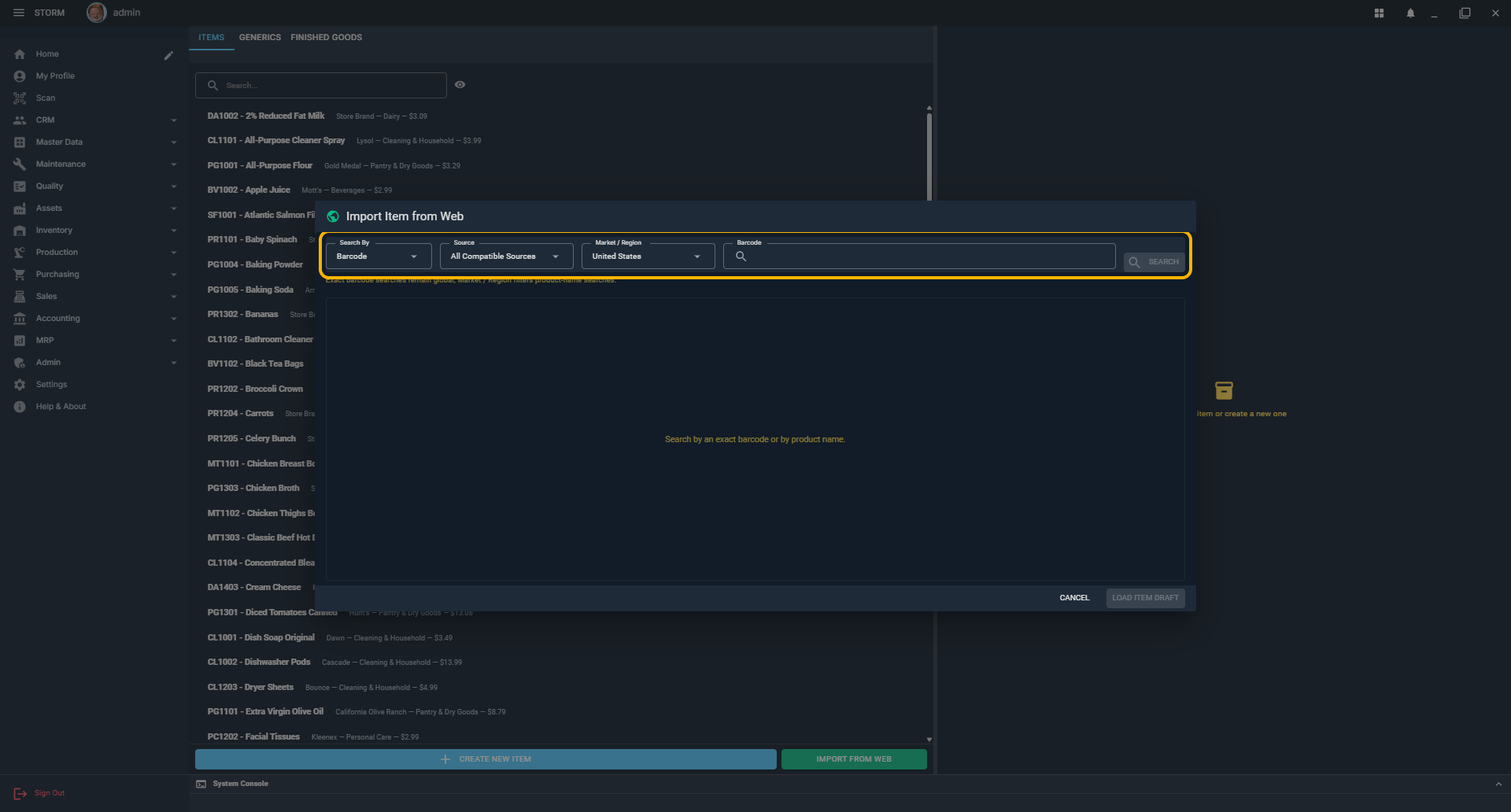
- Open Items. Stay on the Items or Finished Goods tab, then click Import from Web.
- Choose Search By. Use Barcode for an exact package or Product Name when you do not have the barcode.
- Choose a source. All Compatible Sources is the normal starting point. OpenFoodFacts supports food-name and barcode lookup; other configured sources may support barcode only.
- Choose Market / Region for a name search. The region narrows product-name results. Exact barcode searches remain global because the code identifies one package.
- Search and compare. Review the product, brand, barcode, package, suggested category, markets, and source. Select the row that matches the package in front of you.
- Load the draft. Click Load Item Draft. A product already assigned to another local item cannot be imported as a duplicate.
- Finish local setup. Enter your own Item Code, verify the Base UoM and package conversion, and review the General, Nutrition, and Barcodes tabs. Imported barcodes are marked Pending save.
- Save. Click Save Changes. Canceling the item draft discards the imported values and pending barcodes.
1c. Update an Existing Item from the Web
Use this path to add missing facts or refresh selected fields without blindly replacing trusted local data.
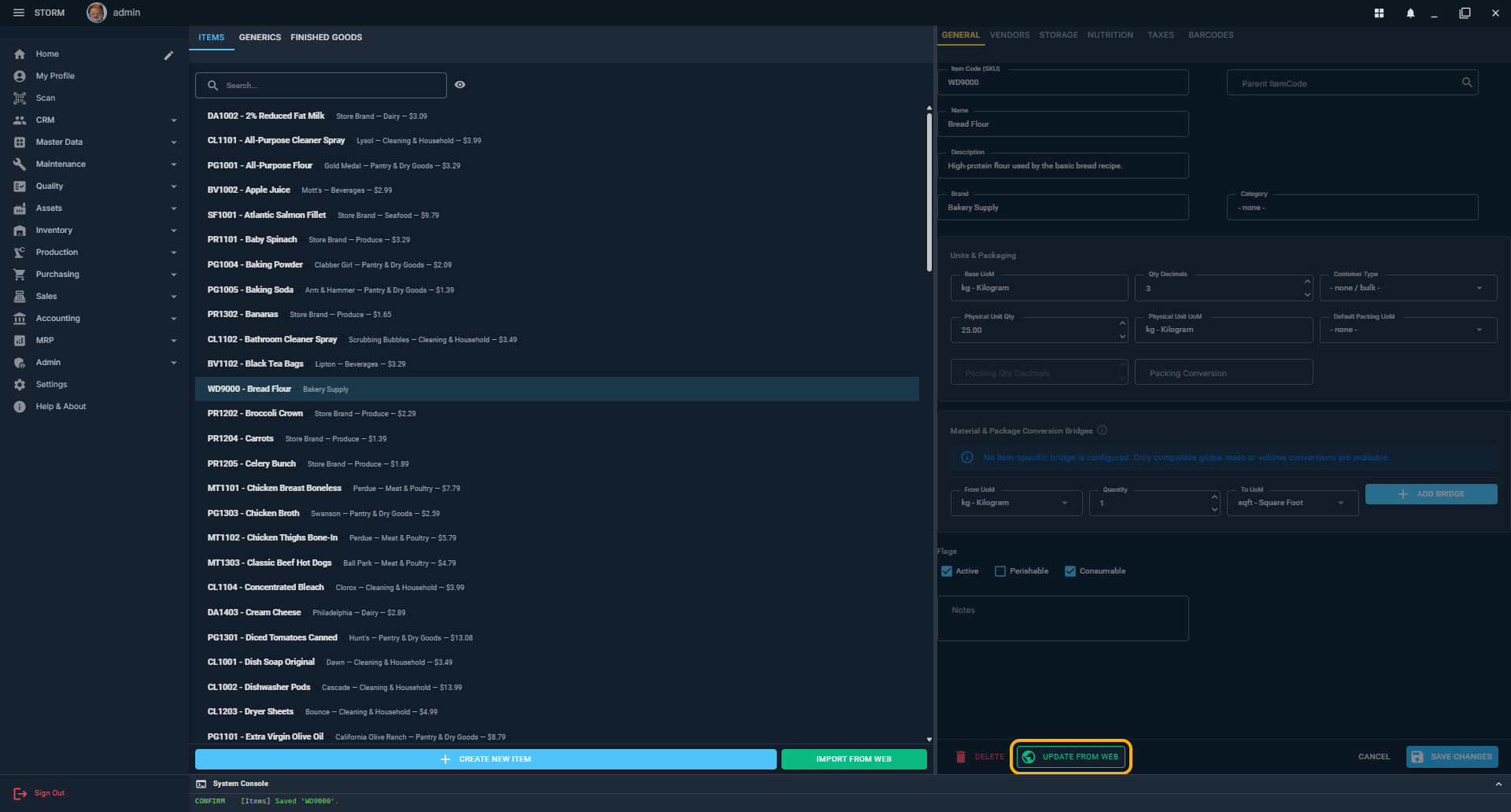
- Select the item. Find the existing physical item in the left panel and open it.
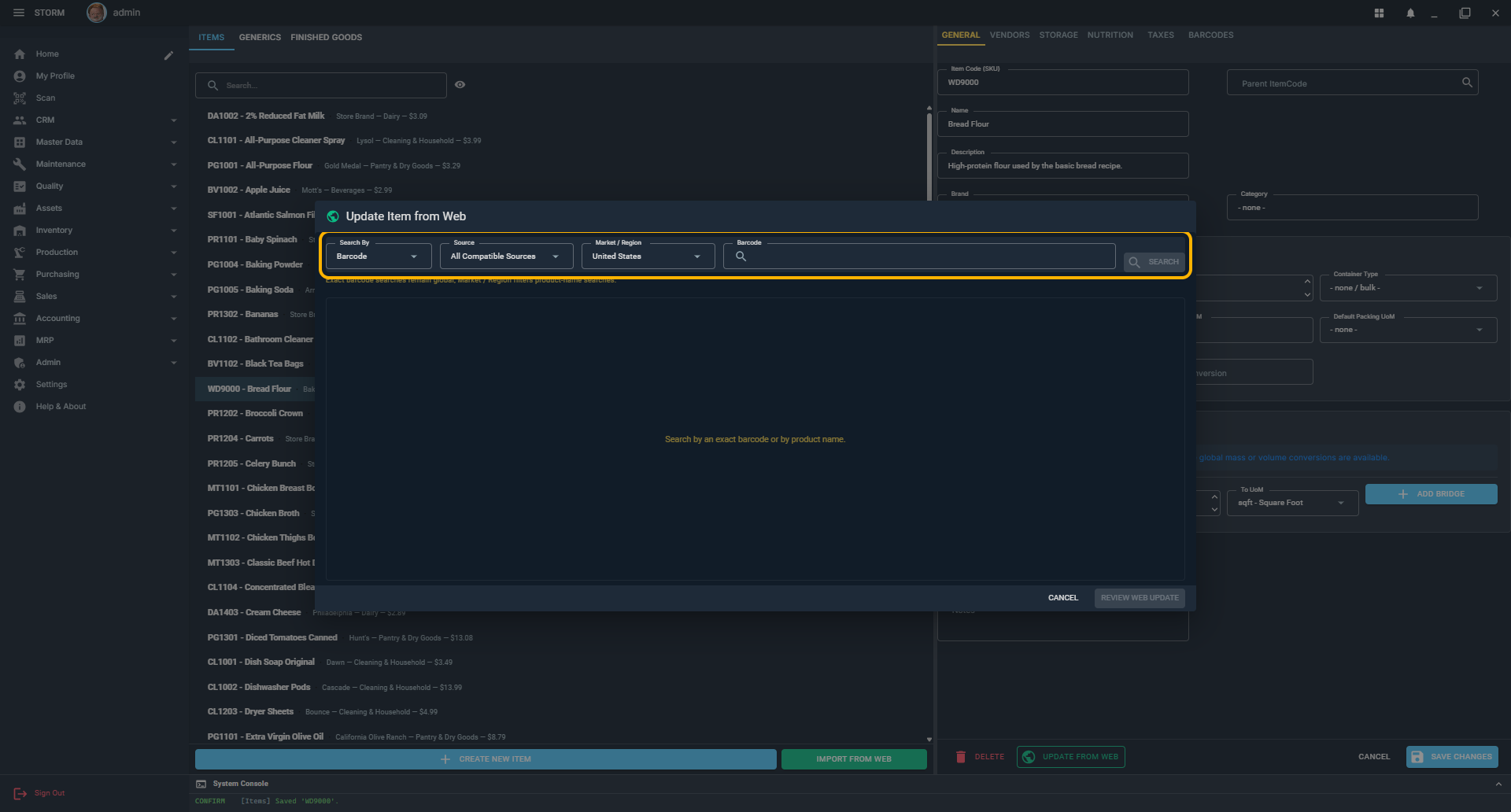
- Start the lookup. Click Update from Web. The desktop app first uses an existing barcode when available and can fall back to the item name; you may change the search.
- Select the correct result. Confirm the brand, package, market, and source, then click Review Web Update.
- Review field by field. The review shows Current item beside Web result. Only checked fields are copied. Existing local values start unchecked; missing values and additive barcodes are normally preselected.
- Apply to the draft. Click Apply Selected to Draft. This changes only the visible edit draft and does not write to the database yet.
- Inspect the affected tabs. Confirm package size, category, nutrition, ingredients, image, and pending barcodes. Uncheck or correct anything that is not authoritative for your operation.
- Save or cancel. Click Save Changes to persist the reviewed draft. Cancel reloads the stored item and discards every web change.
Final Item Check
- The item code is unique and meaningful.
- The Base UoM is the unit inventory will actually use.
- Package size and conversion match the purchased container.
- Parent generic, storage, shelf-life, and receiving quality rules are correct.
- Imported nutrition, ingredients, and barcodes were reviewed before Save.